
Why Tracking Money Feels Hard (And Why You Should Do It Anyway)
Most people don’t track their expenses and income because it sounds exhausting.
Spreadsheets, categories, receipts… who has time for that after work?
But there’s an awkward truth: if you don’t know where your money goes, you’re guessing about every financial decision you make.
And guessing is how:
– a “small” subscription habit quietly becomes $120–$300 a year
– a few lunches out a week turn into $2,000+ annually
– pay raises disappear without improving your life
The good news: tracking doesn’t have to be complicated or perfect.
You just need a simple system you’ll actually use.
In this guide we’ll walk through the main approaches, compare them, and I’ll show you what works best for different personalities and goals.
Step 1: Decide What You Actually Need From a Tracker
Before tools and apps, you need clarity on what you’re trying to learn.
The Only Three Questions That Matter At First
Most beginners need answers to just three things:
1. How much money *comes in* every month on average?
2. How much money *goes out* — and where, roughly, does it go?
3. Is there anything *left over* — and if yes, where does that surplus actually end up?
Everything else (net worth, retirement projections, tax optimization) comes later.
Your tracking method should make these three answers obvious at a glance.
If it doesn’t, change the method — not yourself.
Step 2: Choose Your Overall Tracking Style
There are four main approaches:
1. Pen and paper
2. Spreadsheets (Excel, Google Sheets, Numbers)
3. Manual-tracking apps
4. Automatic bank-sync apps
Each style has pros and cons. The “best” option depends on your habits more than on the features.
—
Approach 1: Pen and Paper – “Analog, But Weirdly Effective”
This is the most low‑tech way to track expenses and income… and for some people, it works brilliantly.
How It Works in Real Life
You keep a small notebook (or one page per month) and write down:
– date
– what you spent / received
– amount
– category (food, transport, rent, etc.)
At the end of the week you add everything up.
This is exactly what Anna, a freelance translator, did when she was constantly short on cash.
After 30 days of writing *every* coffee, taxi, and grocery purchase, she discovered she was spending more on food delivery than on utilities. No app, no charts — just a pen, paper, and honest numbers.
Short, yes. But eye‑opening.
Pros
– Forces you to notice each purchase (great for impulse control)
– Zero learning curve, no tech, no passwords
– Works even if your phone dies or apps disappear
Cons
– Totals and analysis take time and a calculator
– No automatic backups
– Harder to separate personal and business expenses
– No alerts or reminders
Who it’s best for:
People who like tactile tools, hate screens, and care more about awareness than detailed reporting.
Technical Block: Simple Paper Layout
Use a single page per week:
– Columns: Date | Description | Category | Amount (−) | Income (+)
– End of week: add a small summary box:
– Total income
– Total expenses
– Difference (income − expenses)
Aim to log within 24 hours of the transaction so you don’t forget.
Approach 2: Spreadsheets – Flexible and Powerful (If You Actually Use Them)
Spreadsheets are the middle ground: more structure than paper, less automation than apps.
Why So Many Financial Pros Still Use Spreadsheets
Ask accountants and financial coaches how they track their own cash flow and many will admit they still maintain a humble Google Sheet.
Because:
– custom categories
– full control over formulas
– easy to split by months, years, and projects
This is especially strong if you have side gigs or a small business and want a simple small business income and expense tracking tool that doesn’t lock your data inside a proprietary system.
Real‑World Example
Mark, a designer with a day job and two side hustles, uses:
– one sheet for salary + fixed bills
– one sheet for freelance income and business expenses
– one yearly summary sheet that pulls totals from both
Result: in April he could see that his freelance work paid $9,800 profit year‑to‑date and he was spending 27% of that on software tools. That triggered a cleanup of subscriptions that saved him about $80/month — nearly $1,000 a year.
Pros
– Customizable categories, currencies, and views
– Easy to copy, back up, and adjust
– Great for people who like numbers and control
– Works as both personal finance software for budgeting and a light business tracker
Cons
– You must enter data manually (unless you import CSVs)
– Boring for some; hard to maintain daily
– No push notifications or automatic insights
Who it’s best for:
People comfortable with basic formulas, anyone with irregular income, and beginners who want “training wheels” before moving to more advanced tools.
Technical Block: Minimal Spreadsheet Setup
Create one sheet per month with these columns:
– `Date`
– `Type` (Income / Expense)
– `Category` (Rent, Groceries, Transport, etc.)
– `Description`
– `Amount`
Then add summary cells at the top:
– `Total Income` = `SUMIF(Type, “Income”, Amount)`
– `Total Expenses` = `SUMIF(Type, “Expense”, Amount)`
– `Balance` = `Total Income – Total Expenses`
Optional: add another column for “Account” (Cash, Card, Credit Card) to reconcile with statements.
Approach 3: Manual-Entry Apps – Convenience With Control
Many people want phone‑based tracking but don’t trust full automation. That’s where manual apps shine.
You enter each transaction, but the app handles:
– category suggestions
– charts
– summaries by week/month
– reminders
How This Feels Day to Day
You buy lunch, open the app, type $11.50, tag “Restaurants,” done.
Takes 10–20 seconds.
Do this for a week and you’ll see, in real time, that $11.50 x 5 days = ~$230 per month if it’s a habit. That’s when behavior starts changing.
Comparing Manual Apps vs. Pen & Paper
– Both require you to record every purchase.
– Apps give you instant graphs and totals, paper doesn’t.
– Apps can remind you; notebooks keep quiet in your bag.
Some of the contenders for best expense tracking app in this category focus on being fast to open and log, not on being “smart.” That’s exactly what you want if you know you tend to procrastinate.
Pros
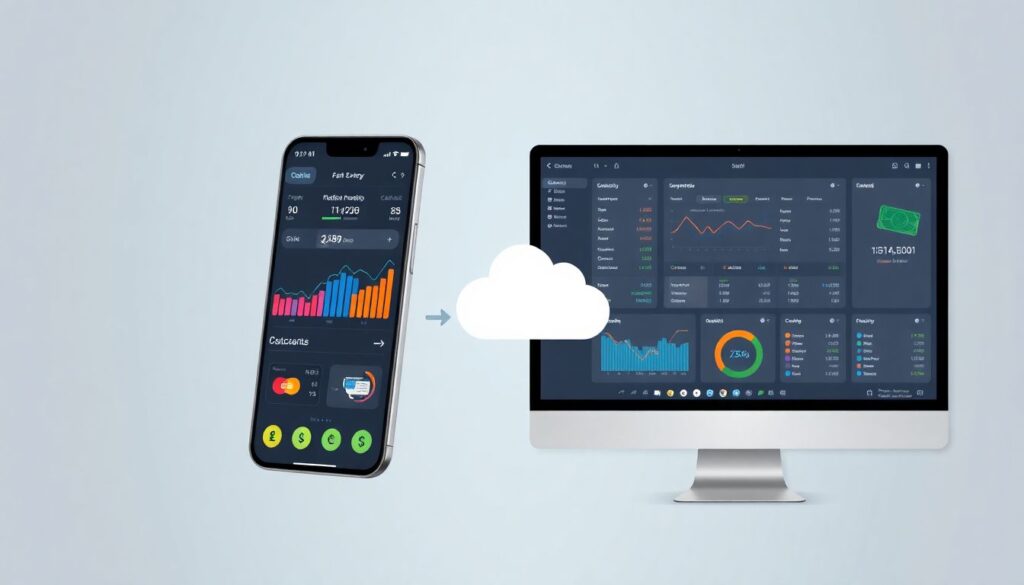
– Fast entry, automatic sums and charts
– Cloud sync between phone and desktop in many cases
– Easier to track multiple wallets, cards and currencies
Cons
– You must still remember to log
– Some features locked behind subscription
– Data locked in one ecosystem if export is poor
Who it’s best for:
People glued to their phones, who like visual summaries but don’t want to connect their bank accounts directly.
Technical Block: What to Look For in a Manual App
When testing a free expense and income tracker, check:
– Can you export data to CSV or Excel? (non‑negotiable)
– Does it support recurring income/expenses?
– Can you customize categories and rename them?
– Is offline entry possible, with sync later?
Install two apps, track for one week in both, then keep the one that feels natural and quick.
Approach 4: Automatic Bank-Sync Apps – “Set It and (Almost) Forget It”
The most hands‑off method is to connect your bank and card accounts to an app that imports transactions automatically.
How It Works
You authorize read‑only access via your bank’s API (or an intermediary like Plaid, TrueLayer, etc.).
The app pulls in:
– merchant name
– date
– amount
– card/account used
Then it auto‑categorizes each transaction using its own rules and machine learning. You fix mistakes as you notice them; the app learns and improves.
Huge Win: Seeing Everything in One Place
If you use more than one card, you know the problem: some subscriptions hit your credit card, others your debit card, and cash just vanishes. An aggregator app shows everything in one view.
Using a modern online budget planner for beginners with bank sync, it’s common for users to discover:
– 3–7 forgotten subscriptions (gym you never visit, old cloud service, trial you never cancelled)
– annual charges you mentally filed under “one‑time,” but which hit every year
– categories that quietly balloon over time — e.g. rideshares going from $30 to $130/month without you noticing
Pros
– Minimal data entry
– Good for people with many accounts or cards
– Real‑time view of your total cash flow
– Powerful for trend analysis over months and years
Cons
– Privacy concerns and bank‑connection distrust
– Auto‑categorization can be messy at first
– Some of the more advanced tools charge subscription fees
– Not always ideal for cash spenders
Who it’s best for:
Busy people with decent digital literacy, salaried workers with many cards, and those who want “autopilot” tracking more than manual awareness.
Technical Block: Safety and Setup Basics
When choosing an automatic‑sync tool:
– Check if access is *read‑only* (cannot move money)
– Confirm the connection uses an audited provider (e.g., Plaid, Salt Edge, TrueLayer)
– Use strong unique passwords and two‑factor authentication
– Start by connecting just one account and observing how data is imported and categorized for a month
If you’re uncomfortable with bank connections, use a hybrid approach: automatic import from one “spending card” only; track savings and reserves manually.
Comparing Approaches: Which One Is Right For You?
Let’s match approaches to actual personalities and situations.
If You’re Starting From Zero Awareness
Pen & paper or a very simple manual app is enough for 30 days.
Your goal isn’t perfection — it’s to reveal patterns.
– You’ll immediately see where money leaks.
– You’ll also see if income is stable or constantly shifting.
Once you have that baseline, you can upgrade later to more advanced tools.
If You Love Numbers and Customization
Spreadsheets give you maximum flexibility:
– custom categories like “Conferences,” “Online Courses,” “Kids’ Activities”
– separate tabs for personal and business
– fully transparent formulas and logic
This can also double as a small business income and expense tracking tool if you mark which expenses are business and which are personal. That’s often enough for freelancers and micro‑businesses before they move to full accounting software.
If You’re Busy and Know You’ll Forget to Log
Start with a good best expense tracking app candidate that supports both:
– bank sync (for automatic import)
– manual entries (for cash and edge cases)
You’ll get the best of both worlds: automation + enough control to fix categories.
Make sure the app has solid onboarding for beginners; some are clearly designed as personal finance software for budgeting geeks, while others explain concepts with plain language and helpful defaults.
Step 3: Choose Your Categories (Without Overthinking)
New trackers often go wrong by creating 30+ categories. Then they burn out.
You don’t need that.
The 8–12 Category Rule
Start with 8–12 broad categories:
– Housing (rent, mortgage, property tax)
– Utilities (electricity, gas, internet, phone)
– Groceries
– Eating Out & Coffee
– Transport (fuel, public transit, rideshares)
– Health (insurance, medications, doctor)
– Fun & Shopping
– Subscriptions (streaming, apps, software)
– Debt Payments (loans, credit cards)
– Savings & Investments
That’s plenty for 90% of people.
After three months, if “Fun & Shopping” is huge and confusing, then you can split it into Clothing, Hobbies, Gifts, etc.
Technical Block: Category Hygiene
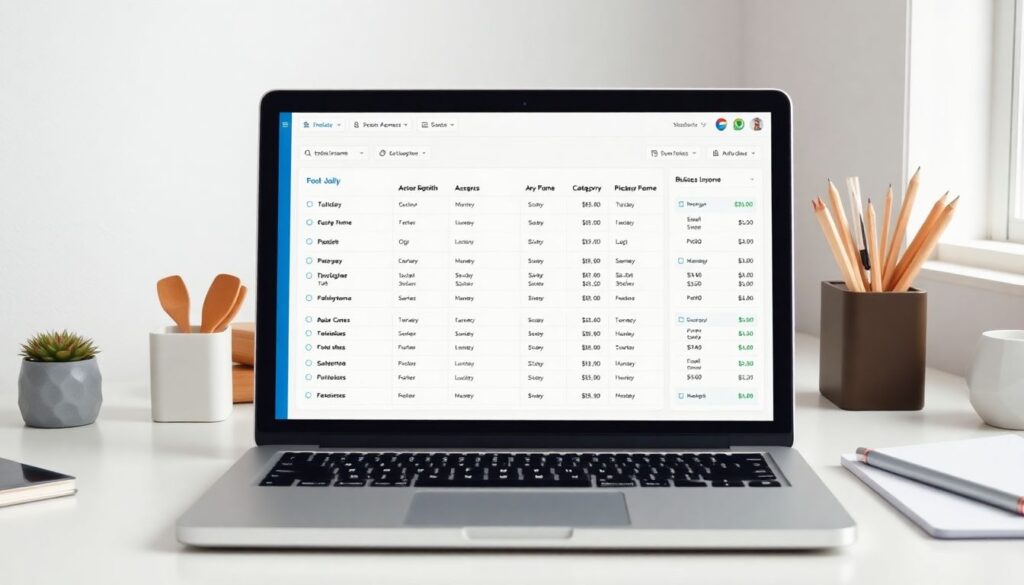
– Keep category names consistent across months, apps, and spreadsheets.
– Avoid having both “Food” and “Groceries” unless you define them clearly.
– When in doubt: fewer categories, more tags/notes.
If you run a side business, add two top‑level categories: “Business Income” and “Business Expenses,” and optionally sub‑categories under them.
Step 4: Set a Simple Routine So You Don’t Quit
The tool is secondary. The routine is everything.
A Minimal Maintenance Schedule
1. Daily (2–3 minutes):
Quickly log yesterday’s transactions if your app doesn’t auto‑import. That could be 3–5 entries.
2. Weekly (10–15 minutes):
– Check your app or sheet
– Fix weird categories
– Add missing cash transactions
– Look at category totals vs. what you *thought* you spent
3. Monthly (20–30 minutes):
– Add up totals: income, spending, savings
– Compare month to previous month
– Decide one change for next month (e.g., cut ride‑shares by 20%, or move an extra $50 to savings)
This rhythm turns tracking into a habit instead of an exhausting one‑time project.
Step 5: Use Your Data to Make One Concrete Change
Numbers are only useful if they lead to decisions.
Example: Finding $200 in Your Existing Budget
A typical pattern for a beginner after 2–3 months of tracking:
– Groceries: $450
– Eating out: $260
– Subscriptions: $75
– Transport: $140
– “Small stuff” (snacks, random purchases): $110
Looking at this, you might:
– set a soft limit of $150 for eating out
– cancel 1–2 subscriptions you barely use, freeing $15–$30
– give yourself a $50 “fun cash” envelope and stop small random card purchases
These tiny tweaks can easily free $150–$250 a month.
Over a year that’s $1,800–$3,000 — which could be an emergency fund, a small vacation, or starting to invest.
Technical Block: A 5‑Step Monthly Review Checklist
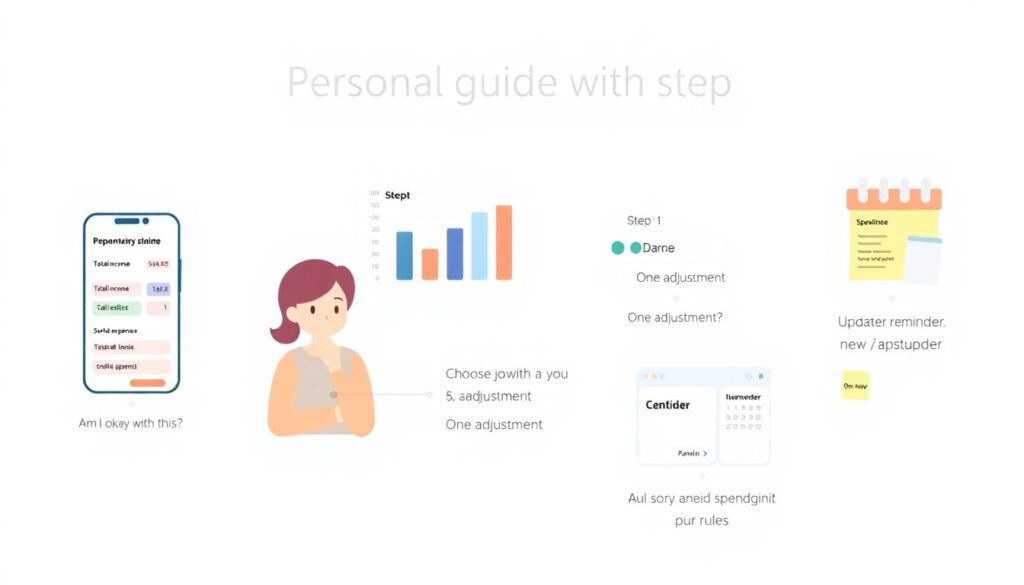
1. Open your app/sheet and note:
– Total income
– Total expenses
– Surplus or deficit amount
2. Identify the top 3 categories by spending.
3. For each, ask: “Am I okay with this?”
4. Pick *one* adjustment (not five).
5. Put the new limit or rule somewhere visible: app budget, calendar, or a sticky note on your wallet.
Keeping the review lightweight makes it sustainable.
Step 6: Free vs. Paid Tools – When to Upgrade
You can go very far with free tools.
When Free Tools Are Enough
– You’re tracking only personal finances
– You have one or two bank accounts
– You’re comfortable doing a bit of manual work
In that case:
– a notebook
– a simple spreadsheet
– or a solid free expense and income tracker app
…will be more than enough.
When a Paid Tool Is Worth It
Paid tools can make sense when:
– you run a growing side business
– you need advanced reporting, invoicing, or tax help
– you want multi‑currency support and detailed analytics
– you appreciate automation more than saving $3–$10/month
At that point, you might move to more full‑featured personal finance software for budgeting or entry‑level accounting software that integrates with your bank and payment processors.
Putting It All Together: A Simple 7‑Day Starter Plan
Here’s a quick sequence to get moving instead of endlessly comparing apps:
1. Day 1:
– Choose one method: notebook, spreadsheet, or app.
– Set up basic categories (8–12).
2. Day 2–3:
– Log everything you spend or earn.
– Don’t judge, just record.
3. Day 4:
– Review your log so far.
– Fix categories; add missing items.
4. Day 5–6:
– Keep logging.
– Add short notes when something feels “unusual” (e.g., “bought gifts,” “annual bill”).
5. Day 7:
– Total income and expenses for the week.
– Decide on one small, specific change for the next week.
Repeat this cycle for four weeks. After a month, you’ll know:
– your real average weekly spending
– your main “leak” categories
– whether the tool you chose fits your life
Final Thoughts: Your System Only Needs to Be Good Enough
You don’t need the perfect app, the fanciest online budget planner for beginners, or a finance degree to get control over your money.
You just need:
– a simple method that fits your personality
– a short daily and weekly routine
– the willingness to look at the numbers honestly
Start with the lightest option that you’re 80% sure you’ll actually use — paper, spreadsheet, or app — and give it 30 days.
By the end of that month you’ll know, in hard numbers, where your money comes from, where it goes, and what needs to change. Everything else in your financial life gets easier from there.
Комментарии